Mastering Visual Paradigm OpenDocs: AI & BPMN for Collaborative Knowledge
Welcome to the ultimate starting point for mastering Visual Paradigm OpenDocs (VP-OpenDocs). Whether you are a solo developer managing complex personal projects or a team lead coordinating remote engineers, documentation often becomes the bottleneck that slows down progress. This guide is designed to strip away the complexity and provide a clear, actionable roadmap for transforming your chaotic notes into a structured, searchable Knowledge Tree.
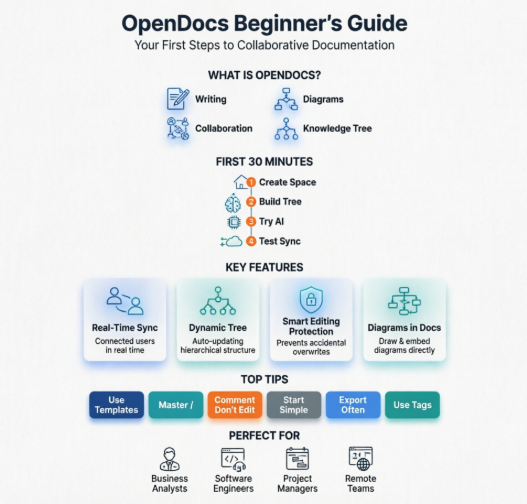
What is OpenDocs?
At its core, OpenDocs is not just a text editor; it is a Knowledge Management System designed for the modern era of software development. Unlike traditional static documentation, OpenDocs leverages a hierarchical structure to organize information, ensuring that your documentation grows as organically as your codebase.
It integrates four critical pillars of technical writing:
- Writing: A distraction-free environment for creating high-quality content.
- Diagrams: The ability to visualize complex systems without leaving the document.
- Collaboration: Real-time synchronization that allows teams to work together without version conflicts.
- Knowledge Tree: A navigable file structure that acts as the “brain” of your project documentation.
Getting Started: Your First 30 Minutes
If you are new to the platform, the initial setup can feel overwhelming. However, by following this streamlined workflow, you can be up and running in under half an hour.
Step 1: Create Your Space
The foundation of any project in OpenDocs is the “Space.” Think of this as your project’s root directory or workspace. This is where all your documents, diagrams, and assets will reside.
Step 2: Build the Tree Structure
Before you write a single line of text, establish your hierarchy. A robust documentation structure usually follows a top-down approach:
- Project Overview: High-level goals and scope.
- Architecture: System diagrams and data flows.
- Implementation: Detailed technical specs and code snippets.
- Operations: Deployment guides and maintenance.
Step 3: Try AI Assistance
One of the most powerful features of the modern VP-OpenDocs suite is its AI integration. Don’t start from a blank page. Use the AI assistant to draft outlines, generate boilerplate code, or summarize complex technical concepts to speed up your initial documentation phase.
Step 4: Test Synchronization
If you are working in a team, immediately test the Real-Time Sync feature. Open the same document on two different devices (or tabs) and make changes. You will see the cursor movements and edits happen instantly, proving that your workflow is seamless.
Key Features Deep Dive
Real-Time Sync & Connected Users
Gone are the days of emailing Word documents back and forth. OpenDocs allows multiple users to be connected in real-time. You can see who is online, who is editing a specific page, and collaborate on the same document without the risk of “overwriting” changes.
Dynamic Tree & Auto-updating
The Knowledge Tree is not static. As you add new documents or move existing ones, the structure automatically updates. This dynamic nature ensures your documentation map always reflects the current state of your project.
Smart Editing Protection
Human error is inevitable, but data loss doesn’t have to be. The Smart Editing Protection feature prevents accidental overwrites and maintains a history of changes, allowing you to revert to previous versions if necessary.
Diagrams in Docs
One of the standout features is the ability to embed diagrams directly into your text. Instead of linking to an external image file, you can draw a BPMN diagram or a System Architecture chart right inside the document. This keeps your context tight—your explanation is always right next to the visual representation.
Top Tips for Success
To maximize your efficiency in Visual Paradigm OpenDocs, adopt these best practices:
- Use Templates: Don’t reinvent the wheel. Use standard templates for API documentation or User Guides to maintain consistency.
- Master / Comment Don’t Edit: For critical sections, utilize the “Comment” mode to request changes rather than editing directly. This preserves the integrity of the source material.
- Start Simple: Don’t try to model the entire system in one go. Start with a simple scope and expand iteratively.
- Export Often: While the platform is robust, always export your documentation (PDF, Markdown, HTML) periodically as a backup.
- Use Tags: Tag your documents effectively. This allows you to filter content dynamically and find related topics across your entire Knowledge Tree.
Perfect For…
Visual Paradigm OpenDocs is designed to bridge the gap between different roles in the software development lifecycle:
- Business Analysts: For capturing requirements and creating high-level process flows.
- Software Engineers: For documenting code architecture and API specs.
- Project Managers: For tracking project status and maintaining operational guides.
- Remote Teams: For providing a centralized, always-up-to-date source of truth.