VPasCode and OpenDocs: A Connected Workflow for Technical Documentation
In modern technical documentation, the gap between system design and written documentation often leads to outdated diagrams and “broken” links. Traditionally, engineers export static images (PNG or SVG) to insert into documentation tools like OpenDocs. However, this breaks the connection between the visual representation and its underlying code definition.
This tutorial explores the architectural benefits of pairing VPasCode with OpenDocs. This integration creates a dynamic, bidirectional workflow where diagrams remain “alive.” By utilizing the Send to OpenDocs Pipeline, you ensure that your documentation is always synchronized with the latest system architecture.
Understanding the “Pairing” Concept
When we speak of “pairing” VPasCode with OpenDocs, it is crucial to understand what this does not mean. It is not about:
- Creating a permanent, hard-coded account-to-account connection.
- Installing heavy browser plug-ins.
- Manually exporting and re-uploading files.
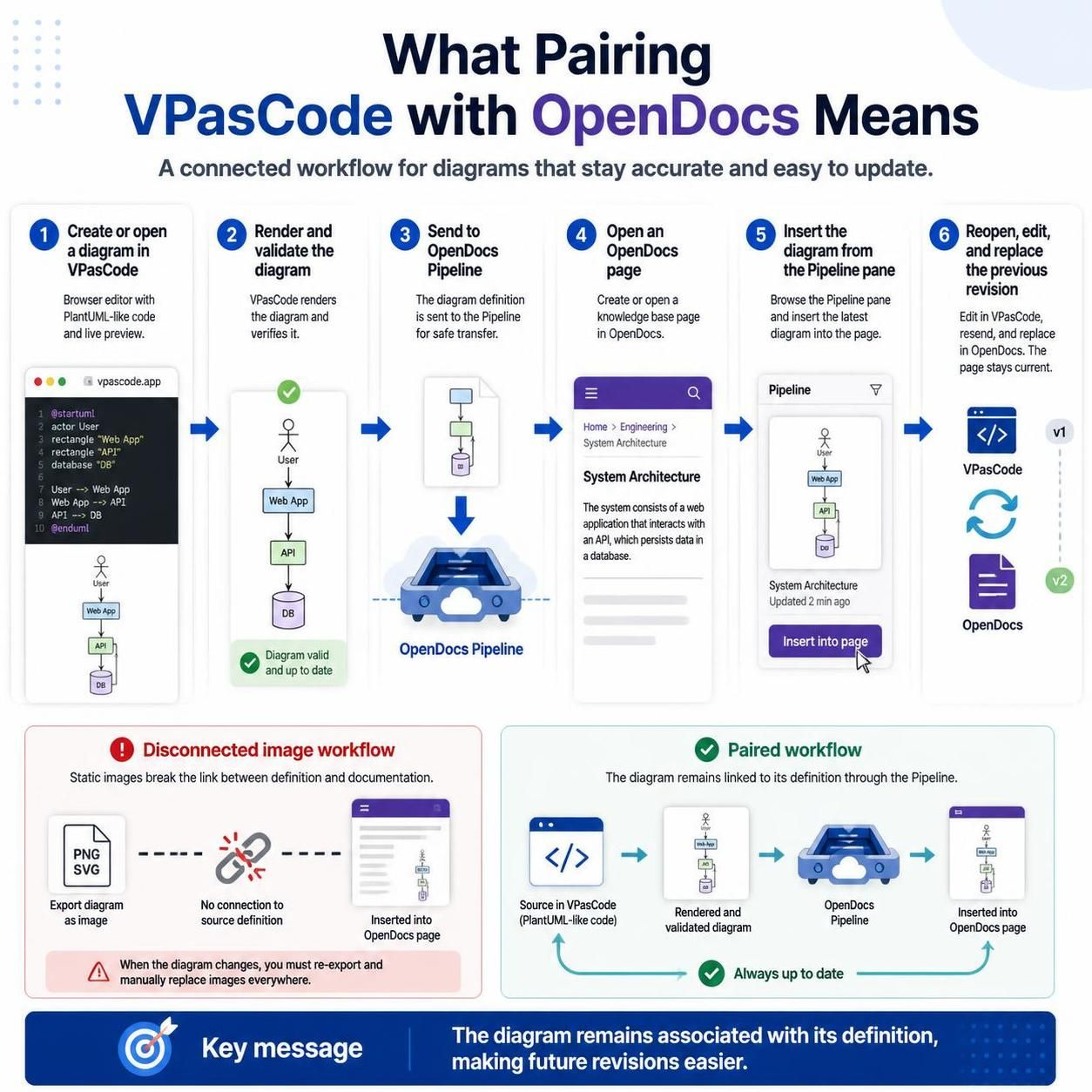
Instead, pairing refers to a specific workflow: You create the diagram in VPasCode, validate it, and send the definition through the OpenDocs Pipeline. OpenDocs then acts as a consumer of this pipeline, pulling the latest rendered diagram into the documentation page.
Step-by-Step: The Integrated Workflow
The following steps outline how to leverage the VPasCode and OpenDocs ecosystem to maintain a single source of truth for your diagrams.
1. Create or Open in VPasCode
The journey begins in the browser-based VPasCode editor. Unlike traditional modeling tools, VPasCode allows you to write diagrams using code (similar to PlantUML). This provides version control and precision.
@startuml
actor User
rectangle "Web App"
rectangle "API"
database "DB"

User --> Web App
Web App --> API
API --> DB
@enduml
2. Render and Validate
VPasCode provides a live preview. As you type, the engine renders the diagram and validates the syntax. This step ensures that the diagram definition is error-free before it ever leaves your development environment. A green checkmark in the interface confirms the diagram is valid and up to date.
3. Send to OpenDocs Pipeline
Once the diagram is rendered, you do not export a file. Instead, you click the Send to OpenDocs Pipeline button. This action transfers the diagram definition (the code), not just the image, to the OpenDocs Pipeline service. This is the critical step that preserves the link between the code and the visual output.
4. Open an OpenDocs Page
Navigate to your knowledge base in OpenDocs. Open the specific page (e.g., “System Architecture”) where you want the diagram to appear. This is where the documentation lives.
5. Insert from the Pipeline Pane
In the OpenDocs editor, locate the Pipeline pane. Here, you will see the diagram you just sent. You can browse your pipeline history and select the latest version. Clicking Insert into page pulls the diagram definition from the pipeline and renders it directly onto your documentation page.
6. Reopen, Edit, and Replace
This is the “killer feature” of the integration. Later, if the system architecture changes:
- Go back to VPasCode.
- Edit the code (e.g., change the database type or add a new API).
- Re-send the diagram to the OpenDocs Pipeline.
- Return to OpenDocs and replace the previous revision.
The diagram on the page updates automatically to reflect the new definition. You never have to re-export or manually swap an image file.
Disconnected vs. Paired Workflows
To fully appreciate this architecture, compare the traditional method with the paired method.
The Disconnected Image Workflow (Traditional)
- Process: Export diagram as PNG/SVG → Insert into OpenDocs.
- The Problem: The image is static. If the definition changes, the link is broken. You must manually re-export and replace the image everywhere.
The Paired Workflow (VPasCode + OpenDocs)
- Process: Source in VPasCode → Rendered/Validated → OpenDocs Pipeline → Inserted into OpenDocs.
- The Benefit: The diagram remains linked to its definition. The system ensures the documentation is always up to date with the latest revision.
The Key Message
The core philosophy of this integration is that the diagram should not be treated as a disconnected attachment. It remains associated with the diagram definition, making future revisions significantly easier and reducing technical debt in your documentation.