![Free eBooks of IT [BooksOfAll]](https://www.booksofall.com/wp-content/uploads/2022/06/booksofall-logo-2.png)
Complete Guide: Visual Paradigm OpenDocs – AI-Powered Knowledge Management & Diagram Generation
Introduction to OpenDocs
In today’s fast-paced digital landscape, organizations struggle with a critical challenge: bridging the gap between complex technical modeling and accessible, human-readable documentation. Teams often find themselves juggling multiple tools, switching between diagramming software and documentation platforms, leading to fragmented information and reduced productivity.
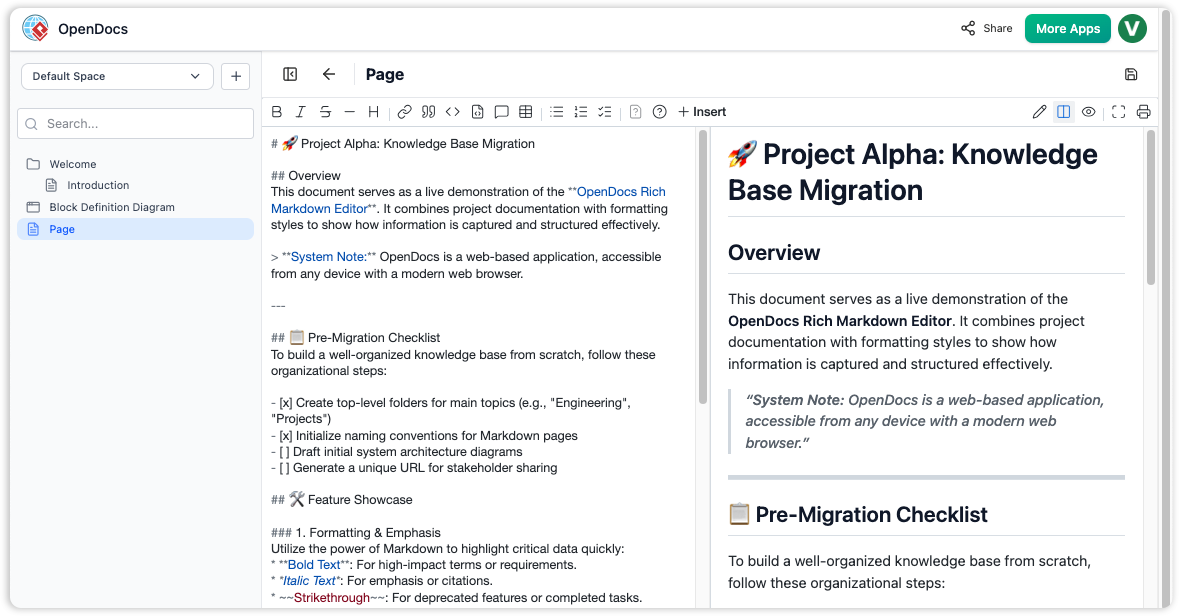
Enter Visual Paradigm’s OpenDocs—a revolutionary, AI-powered knowledge management platform that fundamentally transforms how teams create, organize, and share technical knowledge. By seamlessly integrating professional diagramming capabilities with intelligent documentation tools, OpenDocs eliminates the traditional barriers between visual modeling and written content.
What is Visual Paradigm OpenDocs?
OpenDocs is a specialized knowledge and document management platform built for modern teams. Unlike conventional tools, OpenDocs integrates directly with a robust diagram editor. This means you can insert diagrams into your pages and re-edit them later without leaving the document. By supporting exports from Visual Paradigm Desktop, OpenDocs now becomes the central hub for all your professional modeling and documentation needs.
OpenDocs is a next-generation AI knowledge management tool that allows you to create, organize, and share knowledge through a hierarchical “tree” structure. Think of it as a smart, living library for your projects, products, or entire company. With an AI assistant built into its core, OpenDocs transforms static documents into a dynamic and interactive AI-powered knowledge base.
Platform Overview
-
Web-Based Accessibility: Fully browser-based platform requiring no desktop installation
-
AI-Native Architecture: Built from the ground up with artificial intelligence integration
-
Unified Workspace: Combines text documentation and professional diagrams in one environment
-
Cloud Platform: Accessible from any device, enabling remote and distributed team collaboration
The Ultimate “Concept-to-Docs” Workflow
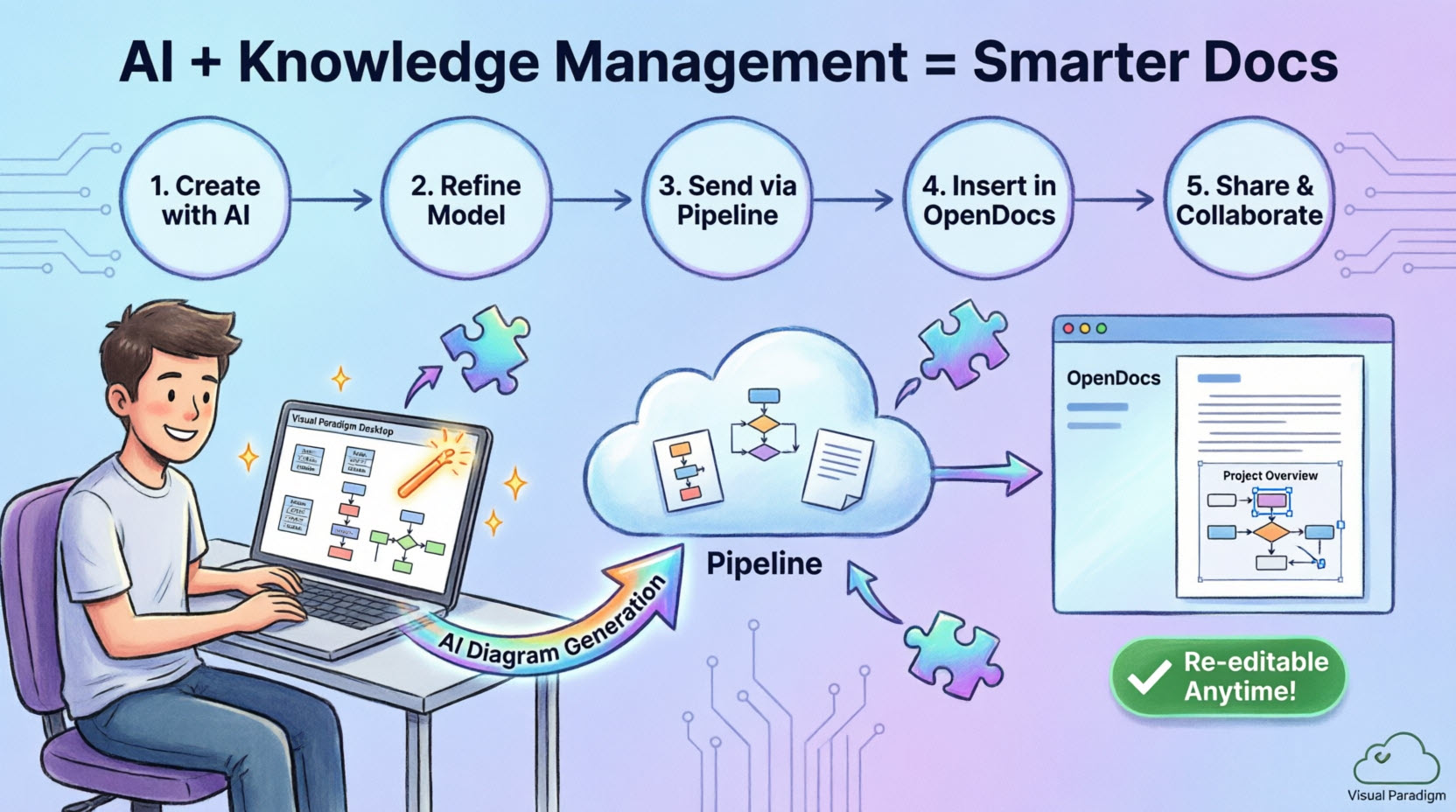
We are excited to announce a powerful new integration between Visual Paradigm Desktop and Visual Paradigm OpenDocs. You can now bridge the gap between your modeling environment and your online document management platform. This feature allows teams to move from initial ideas to comprehensive, shared knowledge bases without the manual friction of exporting and uploading image files.
Imagine the possibilities: use the AI diagram generation in Visual Paradigm Desktop to instantly visualize a business process or system architecture. Refine the model using our professional suite of tools, and then send it directly to OpenDocs via the Pipeline to provide the necessary context and descriptions for your stakeholders.
Note: This integration is available to users of Visual Paradigm Professional Edition and above.
Understanding the Pipeline
The Pipeline is a secure, centralized repository for “artifacts”—the assets you create across the Visual Paradigm ecosystem. Since our tools cover everything from enterprise architecture to agile development, the Pipeline serves as the essential space to hold and transfer these artifacts. It allows the output from one tool, like an AI-generated UML diagram, to become the input for another, such as a technical manual in OpenDocs.
Core Features
1. Structured Knowledge Trees
Organize your documents intuitively with a hierarchical tree structure. Create pages and nest them to build a clear, easy-to-navigate map of your team’s knowledge.
2. Rich Markdown & WYSIWYG Editor
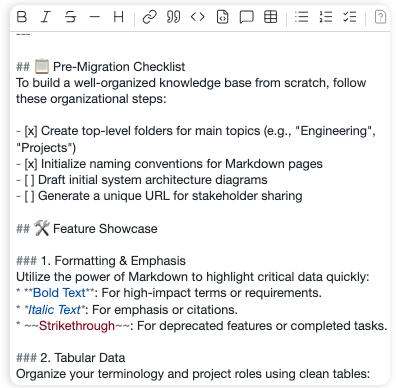
A full-featured editor for creating and formatting text documents using Markdown syntax with real-time “What You See Is What You Get” preview. It provides a simple yet powerful way to write beautifully structured documents with headings, lists, tables, code blocks, and more.
3. Integrated Diagram Editor
Create a wide variety of diagrams directly within OpenDocs. This powerful feature allows you to create visual documentation, such as flowcharts, UML diagrams, and mind maps, to complement your text-based documents.
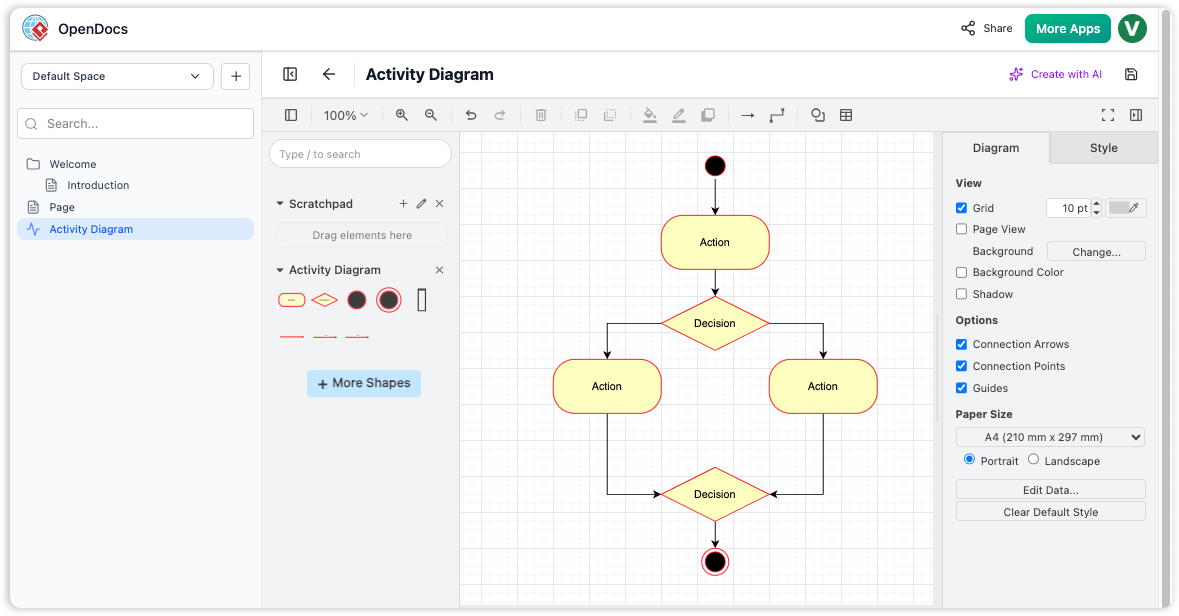
Best part: You can generate diagrams with the AI diagram generator, and touch up further.
4. Hierarchical Folder Structure
Organize your documents and diagrams in a familiar tree-like structure with nested folders. This allows for a logical and scalable organization of your knowledge base, making it easy to manage even a large number of documents.
AI-Powered Capabilities
AI Content Assistant
The integrated AI Assistant functions as a collaborative “thought partner” within your documents, accelerating content creation and enhancing documentation quality.
Content Generation Features:
Draft Generation
-
Create full articles or sections from simple outlines or bullet points
-
Transform basic ideas into comprehensive documentation
-
Generate first-draft content in seconds
Summarization & Simplification
-
Condense long technical documents into actionable summaries
-
Rephrase complex jargon for different audiences
-
Extract key insights from lengthy documentation
-
Adapt content tone for technical vs. non-technical stakeholders
Contextual Q&A
-
Answer questions based specifically on information stored in your OpenDocs knowledge base
-
Retrieve relevant information instantly
-
Provide context-aware responses
-
Reduce time spent searching for information
AI-Powered Diagram Generation
OpenDocs’ AI Diagram Generator transforms natural language prompts into complete, professional diagrams instantly.
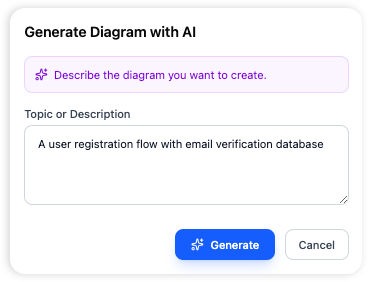
One-Shot Creation Process:
-
Describe: Enter a plain English description of your system or process
-
Example: “Create a flowchart for our refund process”
-
Example: “Create a PERT chart for a feature launch”
-
Example: “Generate a UML class diagram for an e-commerce system”
-
-
Generate: AI creates a complete, professional diagram in seconds
-
Refine:
-
Manually edit using the integrated diagram editor
-
Use AI to add elements and suggest improvements
-
Iteratively enhance the diagram
-
AI Diagram Pipeline
A specialized integration connects OpenDocs directly to the Visual Paradigm AI Chatbot, creating a seamless workflow:
-
Generate diagrams through conversational AI in the chatbot
-
Instantly push completed diagrams into OpenDocs documents
-
Maintain full editability within the document
-
Iterate between chatbot and document as needed
Supported Diagram Types
OpenDocs supports a wide range of AI-generated and manual diagrams:
UML Diagrams
-
Class Diagrams: Object-oriented system design
-
Sequence Diagrams: Interaction modeling
-
State Machine Diagrams: State-based behavior
-
Deployment Diagrams: System architecture
-
Activity Diagrams: Workflow modeling
-
Use Case Diagrams: Functional requirements
-
Component Diagrams: Software component architecture
-
Profile Diagrams: Custom UML extensions
Business & Strategy
-
Flowcharts: Process visualization
-
EPC (Event-Driven Process Chains): Business process modeling
-
BPMN: Business Process Model and Notation
-
Mind Maps: Brainstorming and idea organization
-
SWOT Analysis: Strategic planning
Data & Systems
-
Entity Relationship Diagrams (ERD): Database design
-
Data Flow Diagrams (DFD): System analysis (Yourdon DeMarco, Yourdon & Coad, Gane-Sarson)
Project Management
-
PERT Charts: Project scheduling and critical path
-
Timeline Diagrams: Event visualization
-
Breakdown Structure Charts: Work decomposition (WBS, PBS)
How to Export Your Diagrams to OpenDocs
Whether you created your diagram manually or used our AI generation tool, exporting it to your documentation is simple:
-
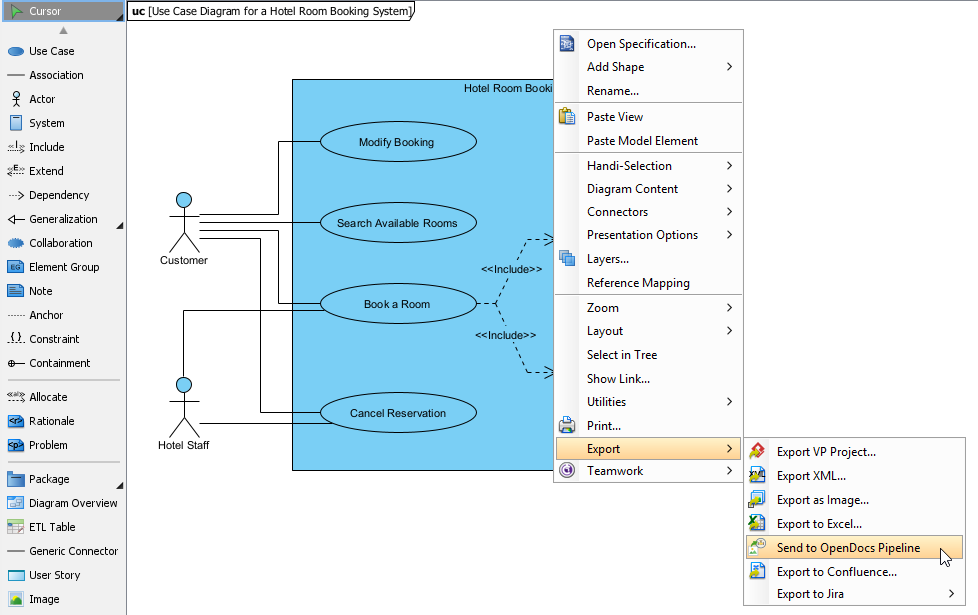
In Visual Paradigm Desktop, open the diagram you wish to send.
-
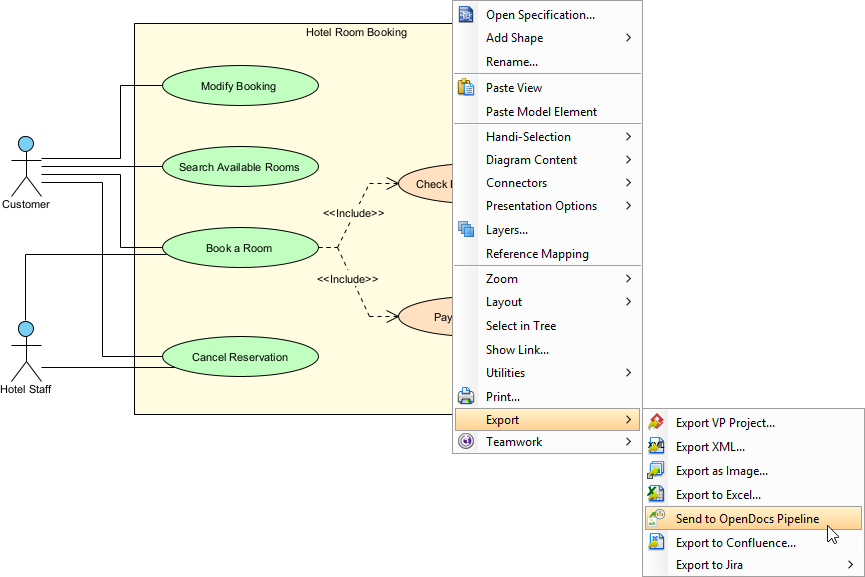
Right-click on the diagram and select Export > Send to OpenDocs Pipeline.
-
When prompted, save your project by clicking OK.
-
(Optional) Enter a comment. This will be visible in the Pipeline pane within OpenDocs to help you identify the version or purpose of the artifact.
-
Confirm the export to output your diagram to the cloud.
Inserting Artifacts into Your Document
Once your diagram is in the Pipeline, you can place it anywhere in your knowledge base:
-
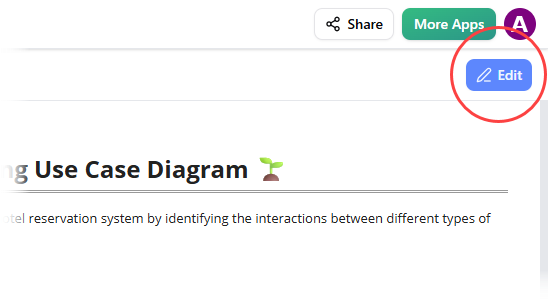
Open any document page in OpenDocs and click Edit.
-
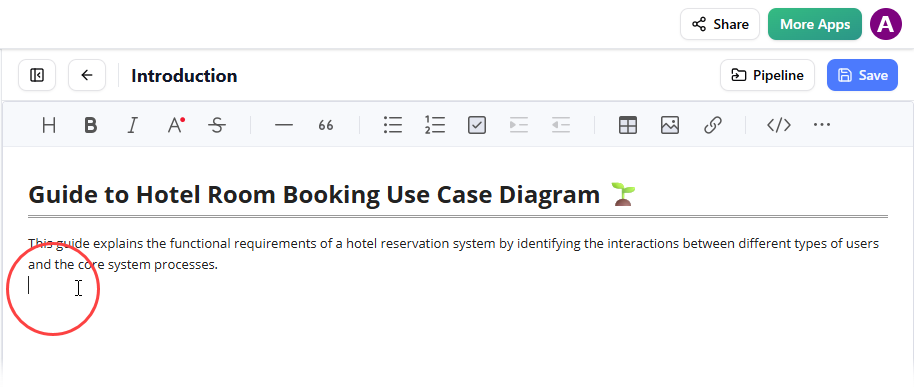
Click on the page where you want to insert the diagram.
-
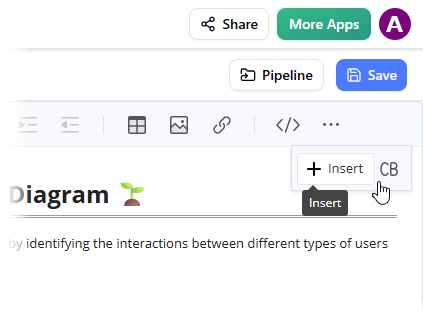
On the toolbar, click Insert.
-
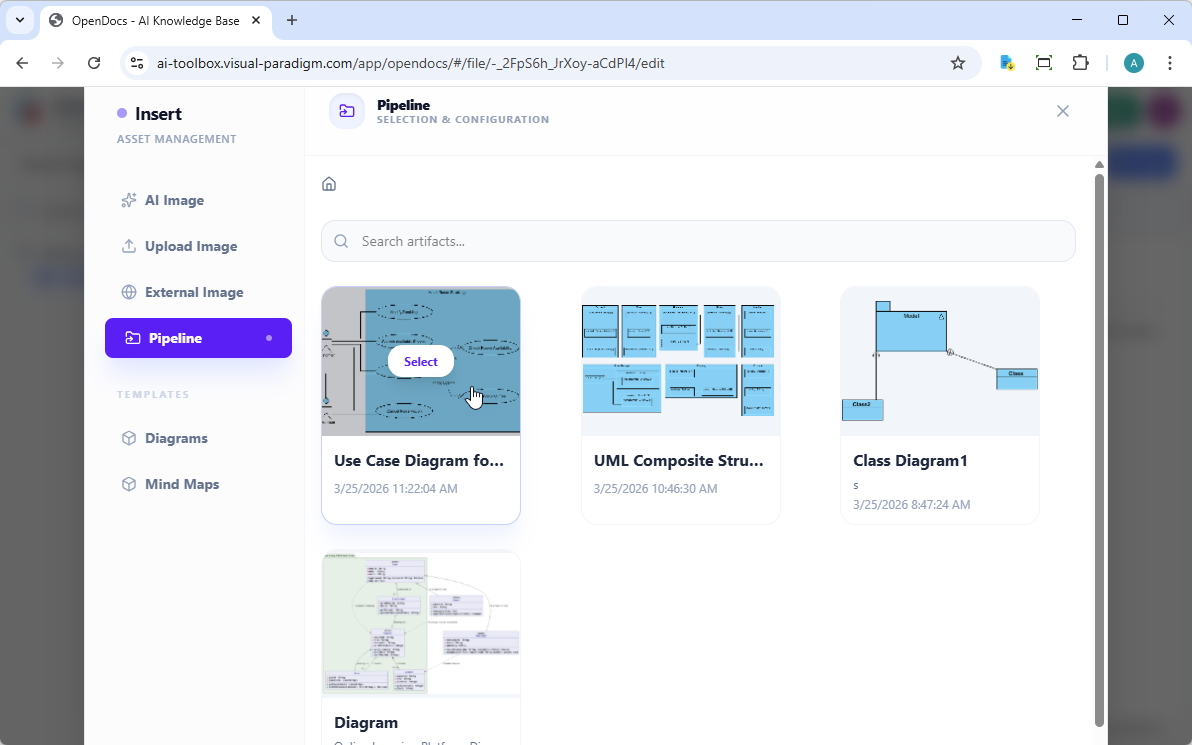
In the Insert window, select Pipeline from the left-hand sidebar. Your sent diagrams will appear here.
-
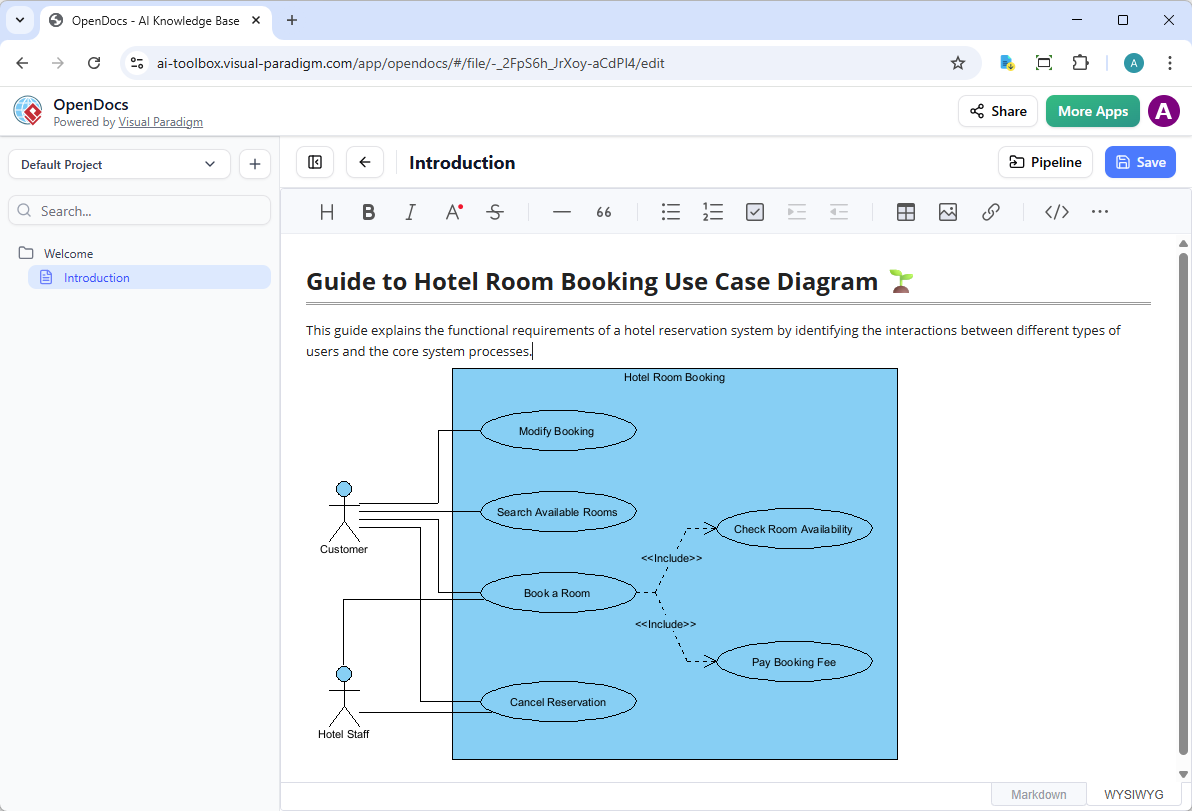
Click on the diagram to insert the image directly at your cursor position.
Keeping Your Documentation in Sync: Updating Artifacts {#updating}
One of the most powerful aspects of this integration is the ability to update your documentation as your models evolve. If you need to make changes to a diagram already in OpenDocs, follow these steps:
1. Open the Source Diagram
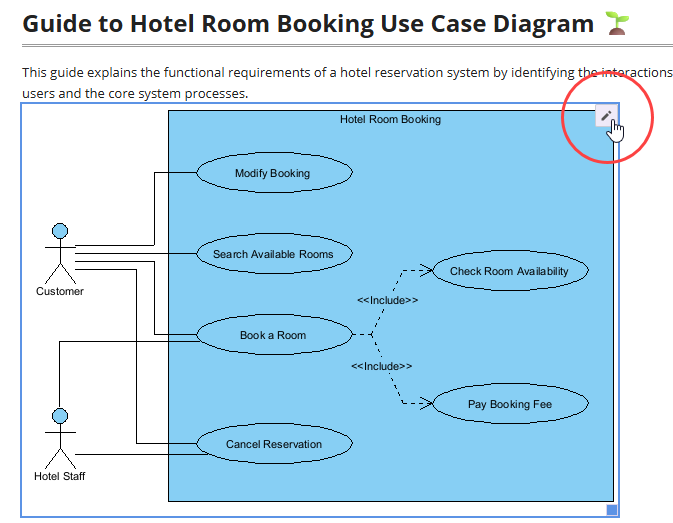
In OpenDocs, click the Edit icon at the top right of the diagram image to open the Edit Diagram window.
Copy the diagram link provided. In Visual Paradigm Desktop, go to Project > Open, paste the link, and the software will open the source model for you. (Alternatively, if you already have the project open, you can skip this step.)
2. Edit and Re-send
Modify your diagram in Visual Paradigm Desktop. Once finished, right-click the diagram and select Export > Send to OpenDocs Pipeline again. You can also simply commit your changes to VP Online, which automatically creates a new revision of the artifact.
3. Swap to the Latest Revision
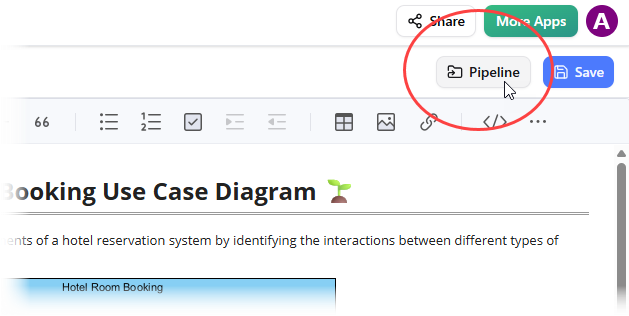
Back in the OpenDocs editor, click Pipeline at the top right.
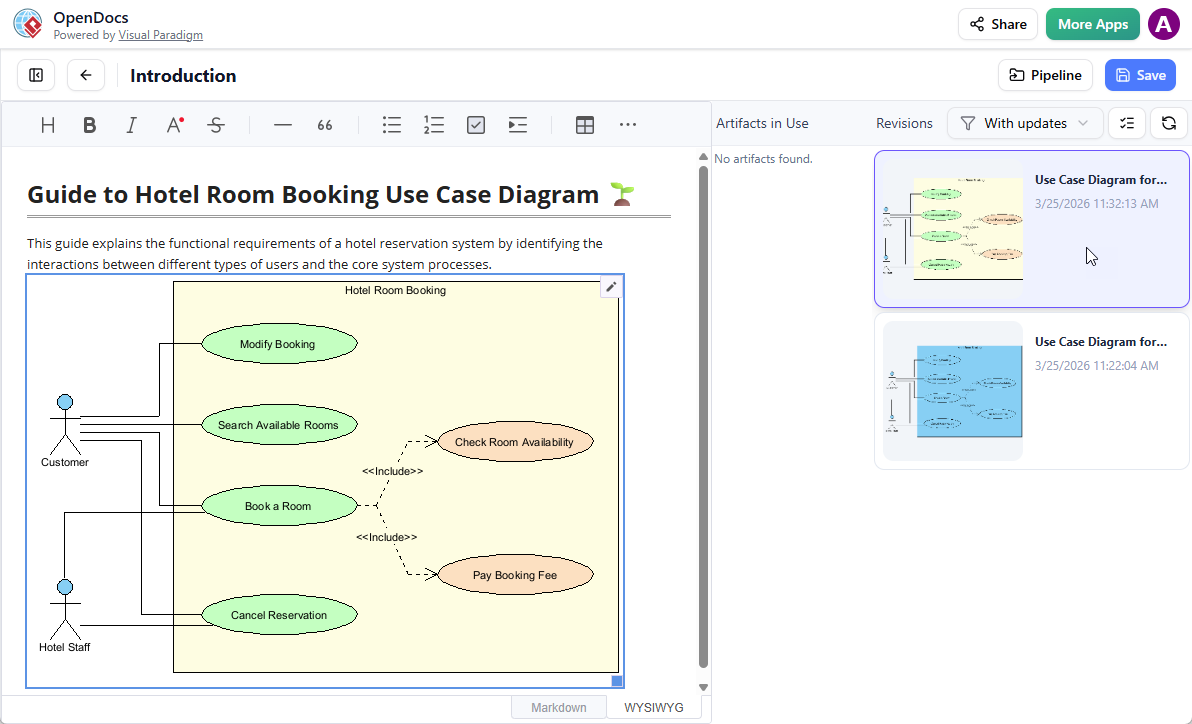
You will see the artifacts currently used on that page. Select the diagram to see a list of revisions. Simply click on the latest revision to instantly swap the old diagram for the updated version.
Collaboration and Sharing {#collaboration}
One-Click Sharing
Share entire knowledge “trees” or specific documents with a single click via secure, read-only links.
Sharing Features:
-
Generate shareable links instantly
-
Read-only access for stakeholders
-
No software installation required for viewers
-
Secure link management
-
Access control options
Shared Workspaces
Multiple users can edit documents and diagrams simultaneously with built-in version history.
Collaboration Tools:
-
Real-time multi-user editing
-
Version control and history
-
Change tracking
-
Conflict resolution
-
User permissions
-
Audit trails
Getting Started
Follow these steps to set up your workspace and begin documenting your ideas:
1. Launch & Initialize
Open the OpenDocs application. You will be greeted by a welcome screen where you can manage your recent projects.
2. Create and Name Your First Page
Click the “New Page” button in the sidebar to create a Markdown document, then give it a descriptive name to stay organized.
3. Write and Format Content
Use the Markdown editor to start writing. You can use standard Markdown syntax to add structure and emphasis to your notes.
4. Generate Visual Diagrams
Click the “New Diagram” button to open the visual editor, allowing you to create flowcharts or models to complement your text.
5. Organize with Folders
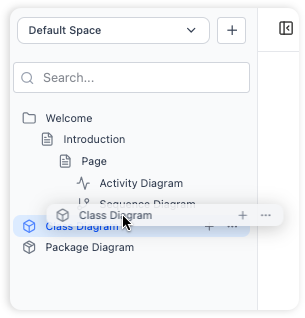
Create new folders via the sidebar and simply drag and drop your pages or diagrams into them to build a structured knowledge base.
Access and Pricing
OpenDocs is a web-based application available through several Visual Paradigm license tiers:
-
Visual Paradigm Online (Combo Edition): Includes full access to OpenDocs and AI tools
-
Visual Paradigm Professional Edition: Full feature access for enterprise-grade documentation
-
Free Tier: Basic functionality is available through Visual Paradigm AI, though advanced features require a subscription
Important Note: The Desktop-to-OpenDocs Pipeline integration requires Visual Paradigm Professional Edition or above.
To get started, you can:
-
Visit the OpenDocs Official Page
-
Access it via the Visual Paradigm AI Toolbox
Key Benefits
-
All-in-One Knowledge Hub: Combine text and diagrams in a single platform, eliminating the need to switch between multiple tools
-
Structure Your Thoughts: Organize knowledge hierarchically with nested folders, making it easy to navigate even large repositories
-
Effortless Collaboration: Share your entire knowledge base with a single click via a secure, read-only link
-
Visually Rich Documentation: Go beyond plain text by creating professional diagrams to illustrate complex processes and systems
-
Markdown for Power Users: Leverage the simplicity and power of Markdown to format your documents quickly and efficiently
-
Accessible Anywhere: Access your documentation from any device using a modern web browser—no desktop installation required
-
AI Acceleration: Generate diagrams and content in seconds instead of hours
-
Single Source of Truth: Consolidate all your team’s knowledge into one centralized platform
Who is OpenDocs For?
OpenDocs is the perfect collaborative documentation platform for:
-
Development Teams building internal documentation and knowledge bases
-
Project Managers centralizing project requirements and progress reports
-
Enterprise Architects working with TOGAF frameworks and system architecture
-
Business Analysts mapping processes and requirements
-
HR Departments creating organized employee handbooks and policies
-
Educators and Students compiling research and study guides
-
Database Designers creating ERDs and schema documentation
-
Anyone who wants to build a structured, smart knowledge base for personal or professional use
Important Note on AI Accuracy
⚠️ AI can make mistakes.
While OpenDocs’ AI is highly advanced, always review and validate generated diagrams and content—especially for production or compliance-critical use cases.
Reference List {#references}
-
OpenDocs – Visual Paradigm: Official feature overview of OpenDocs, including integration with Visual Paradigm and core capabilities for AI-powered knowledge management and diagram generation.
-
Comprehensive Guide to OpenDocs February-March 2026 Update: The AI-Powered Visual Knowledge Engine: In-depth guide covering the latest OpenDocs updates, WYSIWYG editor, AI-powered mind maps, and expanded diagramming suite.
-
Visual Paradigm OpenDocs: The Complete Guide to AI-Powered Knowledge Management and Diagram Generation: Comprehensive review examining how OpenDocs enhances team collaboration through AI-powered documentation and diagramming.
-
OpenDocs: AI-Powered Knowledge Platform: Foundational release note describing OpenDocs as a living knowledge library with hierarchical organization and AI assistance.
-
AI Flowchart Generator – OpenDocs Update: Feature announcement for AI-powered flowchart generation from natural language descriptions.
-
OpenDocs Entity Relationship Diagram (ERD) AI Generation: Feature release for AI-powered database schema design using natural language input.
-
OpenDocs WYSIWYG Editor Update – AI Knowledge Management Tool: Details on the introduction of the real-time, visual editor replacing Markdown with What You See Is What You Get editing.
-
AI Diagram to OpenDocs Pipeline: Integration feature enabling seamless transfer of AI-generated diagrams from Visual Paradigm AI Chatbot to OpenDocs.
-
Sync AI Diagram to OpenDocs Pipeline Guide: Step-by-step guide for synchronizing diagrams between Visual Paradigm Desktop and OpenDocs via the Pipeline.
-
OpenDocs Features – Integrated Diagram Editor: Official documentation on creating a wide variety of diagrams directly within OpenDocs with professional shape libraries.
-
Visual Paradigm AI Chatbot: AI-powered conversational assistant for generating diagrams and technical content through natural language interaction.
-
AI Deployment Diagram Generator – OpenDocs: Feature introduction for AI-powered UML deployment diagram creation for software architecture and system infrastructure.
-
AI Component Diagram Generator – OpenDocs Update: Feature announcement for AI-powered UML component diagram generation for software architecture modeling.
-
AI EPC Diagram Generator – OpenDocs (Event-Driven Process Chain): Feature release for AI-powered Event-Driven Process Chain diagram creation for business process modeling.
-
New in OpenDocs: AI-Powered Data Flow Diagram (DFD) Support: Announcement of AI-powered DFD generation supporting Yourdon DeMarco, Yourdon & Coad, and Gane-Sarson notations.
-
AI PERT Chart Generator – OpenDocs: Feature introduction for AI-powered PERT chart generation for project management and scheduling.
-
AI Breakdown Structure Chart Maker – OpenDocs: Feature announcement for AI-powered Work Breakdown Structure (WBS) and Product Breakdown Structure (PBS) generation.
-
OpenDocs Features – Platform Availability: Information about OpenDocs web-based accessibility and platform requirements.
-
Visual Paradigm Shop – Product Editions: Product comparison and licensing information for Visual Paradigm editions and AI feature availability.
-
Visual Paradigm AI: Visual Paradigm’s AI-powered tools and features, including basic functionality available in the free tier.
Ready to experience the power of AI-powered knowledge management?

Comments (0)